Welcome
Quickly learn how to use Upprovall in your next project.



Creating an account
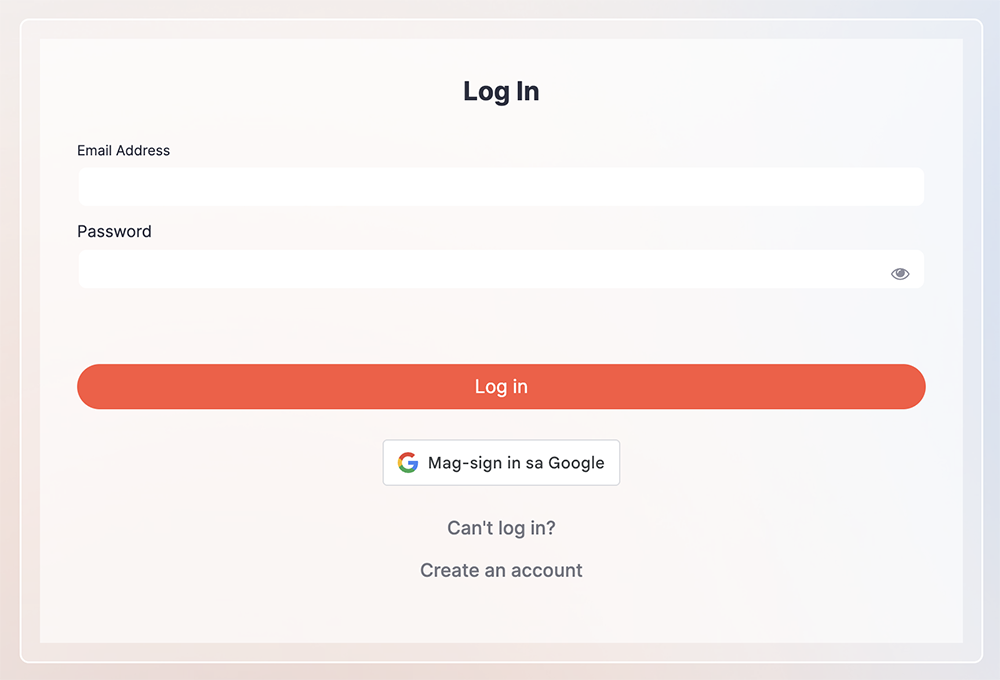
Discover Upprovall in just a few clicks by manually filling up your details or Gmail account. Manual Creation
- Creating an account will require you to confirm an email upon completing the field.
- Once done, an email confirmation will be sent to your email. Make sure to log in using the link generated by the sent email confirmation as it has a security added feature for a secure and safe account creation.
Sign In with Google
- Simply your preferred Gmail account to automatically create your account.
- Once done, an email confirmation will be sent to your email. Close the old browser and use the link from your email to log in.
Personal Account
A free forever workspace that enables you to access all features of Upprovall and invite your workspace to anyone.
Upprovall+
- An upgraded version of Upprovall that enables teams and businesses to do more for efficient performance and production. Requires a subscription.
List View
A table-style dashboard for your cards and stages. Provides you a wider visibility of the dashboard and easier access to various functions without the need to open cards.
Board View
A presentation of cards in a kanban layout. View uploaded designs, images, and card progress in a highly visual manner.
Inactive User Deletion
Accounts with no movements within 6 months will be automatically deleted.
Manual Account Creation
Creating an account will require you to confirm an email upon completing the field. Make sure to log in using the link generated by the email confirmation as it has a security added feature for a secure and safe account creation.
Calendar View
- A shared strategic overview of the card in the workspace. Add or move cards in the Calendar for an efficient and real-time rescheduling and planning.
- Remember: Only cards with Due Dates will appear in the Calendar.
Labels
Mark a card to distinguish one to another or group based on the same type of tasks for a quick and easy description.
Start Date and Due Date
Add start and due dates to cards for efficient planning. This will also make the cards appear in the Calendar view.
Comment Section
- Discuss ideas and meet your minds in one centralized comment section. Here, we have Team (internal) and Guest (external) sections. Team Lead and Coordinator roles can post a comment in Team and Approver while Production role is limited to Team and view only in Approver. This will provide an efficient, transparent and accurate transfer of information.
- On the other hand, Approver and Coordinator roles can only post a comment in Approver. The Team section is hidden to them to provide privacy to the internal roles and perform discussion on the card with no hesitation.
- Take note that posted comments are neither editable nor deletable after 5 minutes.
Mention
Grab User’s attention to a high-priority card by typing “@” in the comment section to create urgency.
File Attachment
Share a file or image to your team in the comment section for a more collaborative production.
Card Activity
Records the activities performed by participants in a card. Viewable in the comments section. Enables anyone to review history and changes.
User Activity
View a consolidated performance activity of a user in the organization.
Manual Account Deletion
- You can delete your account manually anytime. Just make sure to leave all workspaces shared with you in order to proceed. Take note that you cannot log in within 24 hours so think of it thoroughly.
- The account will then be deleted within 15 days. Once deleted, you can no longer use the same email address to register for a new account. To cancel deletion, simply log in before the said time frame.
- In accounts with access to a workspace under Upprovall+, contact admin to have yourself removed.
Card Description
Add text to the card to provide more information about the project.
Invite User
Send invites to anyone directly to a workspace as long as they have a valid email address. Users who do not have an account yet in Upprovall will be asked to create one before they can view and access the workspace you shared. Each workspace consists of 2 types of participants which are the;
Team
Admin/Owner
- Has access to all features and full control of the workspace.
Team Lead
- Restricted from modifying stage sequence and workspace deletion. Can send comments to Team and Guest.
Coordinator
- Restricted from modifying stages sequence, settings, inviting users and workspace deletion. Can send comments to Team and Guest.
Production
- Restricted from modifying stages sequence, settings, commenting in Guest, inviting users and workspace deletion. Can send comments to Team.
Spectator
- View only.
Guest
Approver
- Can Approve, Reject and send Comment to the card.
- Cannot view Team comment section and Stage set as hidden to Guest.
- Restricted from any modification in the workspace.
Contributor
- Can send a Comment to the card.
- Cannot view Team comment section and Stage set as hidden to Guest.
- Restricted from any modification in the workspace.
Stage
A stage can be a process, progress, or container of never ending ideas. It holds and groups cards where you can move from one stage to another. Create and customize stages settings according to your needs. Switch stage in Board view order by hovering your mouse on the top of the Stage title until the cursor changes to a hand cursor. Simply drag the stage and drop to your preferred position. It has various functionalities that you can use that includes;
Sort Ascending/Descending
- Sort cards by due date from newest on top to oldest below or vice versa. Cards with no due dates will be positioned afterwards and arranged alphabetically.
Revision Count
- Count the number of times revision requests were accepted on a submitted card.
Time Track
- Records the total time spent of a card placed on a stage that has Time Track enabled. Moving the card to another stage that has Time Track disabled will stop the recording.
Stage Visibility to Guest
- Show or hide stage and cards under it to Approver and Contributor roles.
Require Approval
- Enables cards to be submitted for approval. The button under the Approver comment section will change from “Comment” to “Submit”. This will allow Team Lead and Coordinator roles to send cards for Approvers to review. On the other hand, Approver roles may “Approve” or “Reject” or send a “Comment” according to their feedback.
Card
The main container in Upprovall where you can store your ideas or tasks, assign participants, discuss comments, upload images, attach files, and more. Explore, experiment, and discover the power within.
Participants
Add users who are most likely to be involved in a card. Take note that only added Participants will receive notifications and updates of the card.
Notification Bell
Real-time source of workspace updates and activities. Mark notifications as read or unread notifications according to your preference. Select View All to backtrack history within 14 days.